
Your internet just went down. Again. You’re staring at your router wondering whether to hit the power button or jam a paperclip into that tiny reset hole on the back. These are two very different actions with very different consequences — and confusing them is one of the most common (and most expensive) mistakes rural internet users make.
Let’s clear this up once and for all, and while we’re at it, build out a complete troubleshooting playbook that’ll save you from calling your ISP’s support line more often than you need to.
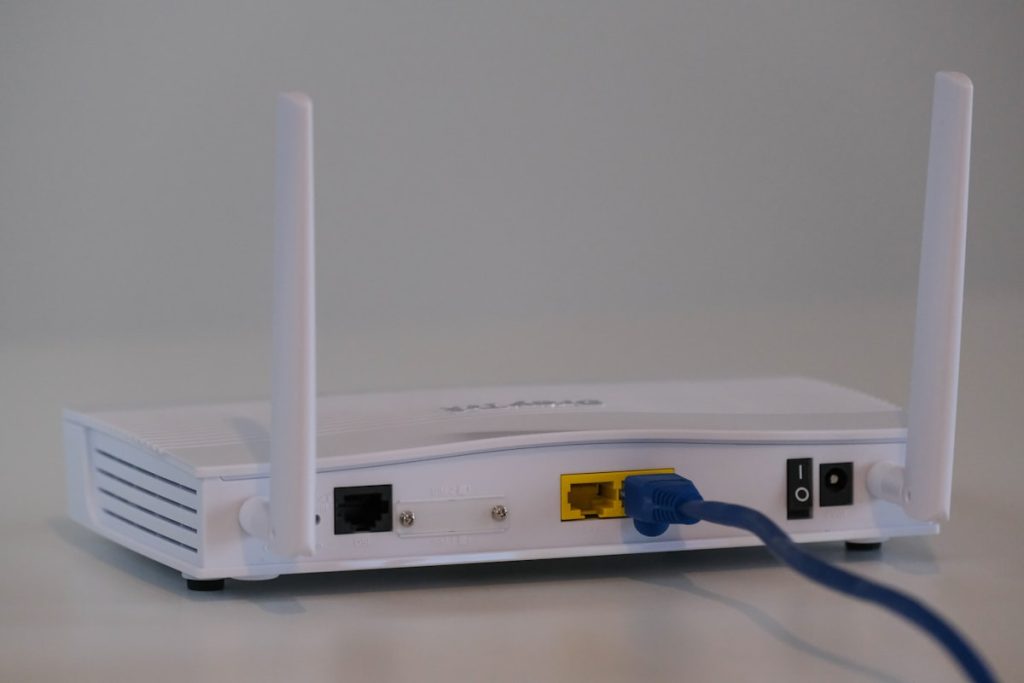
Reboot vs. Reset: What’s the Difference?
Reboot (Power Cycle)
A reboot simply turns the device off and back on again. All your settings, passwords, WiFi names, and configurations are preserved. The device restarts fresh, clears its temporary memory, and re-establishes connections — but everything you’ve configured stays exactly the way you set it up.
How to do it: Unplug the power cable, wait 30 seconds (this matters — capacitors need time to fully discharge), and plug it back in. Or use a power button if the device has one.
When to reboot:
- Internet is slow or not working but was fine recently
- Devices can’t connect to WiFi even though the network name is visible
- After a power outage or brown-out, things seem “stuck”
- Your ISP support rep asks you to “restart your router” (this is what they mean)
- As a general first troubleshooting step — always
Factory Reset
A factory reset erases everything and returns the device to its original out-of-the-box state. Your WiFi network name and password? Gone. Your port forwarding rules? Gone. Your custom DNS settings? Gone. Static IP assignments, parental controls, guest network configuration — all wiped clean.
How to do it: Press and hold the reset button (usually a tiny recessed button you need a paperclip or pin to reach) for 10-15 seconds until the lights flash or the device restarts. The exact timing varies by manufacturer — check your manual.
When to reset:
- You’re locked out of the admin interface and forgot the password
- The device is behaving so erratically that a reboot doesn’t help
- You’re selling or giving away the device and want to wipe your settings
- You’ve made configuration changes that broke things and can’t undo them
- As an absolute last resort after everything else has failed
⚠️ Important: After a factory reset, the admin login reverts to the manufacturer’s default — typically “admin” for both username and password, or sometimes “admin” / blank, “admin” / “1234”, or “admin” / “password” depending on the brand. Check the sticker on the bottom of the device or the manual for the default credentials.
The Rural Internet Troubleshooting Playbook
When your internet goes down, resist the urge to randomly press buttons. Follow this sequence — it covers 90% of common issues and saves you from making things worse.
Step 1: Check the Obvious (30 seconds)
Before touching anything:
- Is the power on? Check if your router and modem have power lights. Rural areas get brown-outs that can kill individual outlets while others stay on.
- Are all Ethernet cables firmly seated? Push each connector in until it clicks.
- Check the lights on your modem/ONT/Starlink — is there an obvious “no signal” indicator?
- Check your ISP’s status page or app from your phone (on cellular data) for reported outages.
Step 2: Reboot from the Outside In (5 minutes)
If the basics check out, power cycle your equipment in order, starting with the device closest to the internet and working inward:
- Internet source first: Modem, fiber ONT, Starlink router, or fixed wireless radio. Unplug, wait 30 seconds, plug back in. Wait 2-3 minutes for it to fully reconnect.
- Router second: Once the modem/source is back up, reboot your router. Wait 1-2 minutes for it to get an IP address and start serving your network.
- Switches and access points third: Reboot any network switches, WiFi extenders, or mesh nodes.
- Problem device last: Restart the specific computer, phone, or device that can’t connect.
This ordered restart lets each piece of equipment re-establish its connection cleanly before the next device in the chain tries to connect.
Step 3: Test Wired Before Wireless (2 minutes)
If rebooting didn’t fix it, plug a laptop directly into your router with an Ethernet cable and try to load a website. This tells you whether the problem is your internet connection or your WiFi:
- Wired works, WiFi doesn’t: The problem is your wireless setup. Try rebooting just the router, or check if a WiFi channel is congested (less common in rural areas, but possible if you’re near neighbors).
- Wired doesn’t work either: The problem is upstream — your modem, ISP connection, or the internet source itself. Time to contact your ISP.
Step 4: Check for Local Issues (5 minutes)
Some problems that look like internet outages are actually local:
- DNS failure: Try loading a website by IP address (like
http://1.1.1.1). If that works but normal URLs don’t, your DNS is the issue. Manually set your device’s DNS to 1.1.1.1 (Cloudflare) or 8.8.8.8 (Google) as a workaround. - Single device issue: If every other device works fine, the problem is with that specific device. Forget and reconnect to the WiFi network, or restart the device’s network stack.
- IP conflict: Rare but annoying — two devices got assigned the same IP address. Rebooting the router usually resolves this by reassigning addresses via DHCP.
Step 5: Factory Reset (Last Resort Only)
If you’ve exhausted steps 1 through 4 and your router is still misbehaving — not just “no internet” but genuinely broken behavior like the admin page won’t load, WiFi networks have disappeared, or the device is in a boot loop — then and only then consider a factory reset.
Before you reset, document your current settings:
- WiFi network name(s) and password(s)
- Any port forwarding rules
- Static IP reservations (for devices like smart home hubs, security cameras, or printers)
- Custom DNS settings (like a Pi-hole address)
- Guest network configuration
- Any parental controls or content filtering rules
Many modern routers let you export your configuration to a backup file through the admin interface. Do this periodically so you can restore after a reset instead of reconfiguring everything from scratch.
Device-Specific Tips
Starlink
Starlink equipment reboots through the Starlink app (Settings → Reboot). Avoid factory resetting your Starlink unless absolutely necessary — it requires re-pairing with your account. If Starlink performance is degraded, check the app for obstruction alerts and weather impacts before rebooting. Many issues resolve on their own within 15-20 minutes as satellite positions shift.
Mesh WiFi Systems
When rebooting a mesh system, always reboot the primary/gateway node first, wait for it to fully come online (2-3 minutes), then reboot satellite nodes one at a time. If you reset the primary node, you’ll likely need to set up the entire mesh network from scratch — all nodes, not just the one you reset.
Fiber ONT
Your ISP’s ONT (Optical Network Terminal) can usually be rebooted by unplugging its power. However, do not factory reset the ONT — it contains provisioning settings from your ISP that you cannot reconfigure yourself. If the ONT needs a reset, your ISP has to do it remotely or send a technician.
Prevent Problems Before They Start
- Use a UPS or battery backup: Dirty power and sudden outages are the #1 cause of network equipment needing reboots. An EG4 battery backup system or even a basic $40 UPS keeps your router and modem running clean and prevents the “reboot everything after every storm” cycle.
- Update firmware: Check your router’s admin page quarterly for firmware updates. Manufacturers patch bugs and security issues regularly.
- Keep spares: A spare Ethernet cable and a known-good network switch save troubleshooting time when you can swap components to isolate a problem.
- Back up your router config: Export your router’s configuration monthly. After a factory reset, importing the backup gets you back to normal in minutes instead of hours.
Final Thoughts
The golden rule: always reboot first, reset only as a last resort. A reboot fixes the vast majority of network issues with zero risk. A factory reset should be treated like reformatting your computer — it works, but you’ll spend the rest of your afternoon reconfiguring everything.
Bookmark this page. The next time your internet goes down during a thunderstorm (because it’s always during a thunderstorm), you’ll have a clear, step-by-step plan that doesn’t involve an hour on hold with your ISP’s support line. And for more ways to build a resilient rural home network, check out our guide to the best mesh WiFi systems for large rural homes and getting started with Home Assistant to monitor it all from one dashboard.